How to create custom layouts?

How to create custom layouts?

Edit your page's layout

The layout editor is available for new catalogs. If you want to use it on an existing catalogs, please contact us via chat and we will update your catalog.

In order to edit your layout, you just need to click on the button located on the top-left corner of your page:
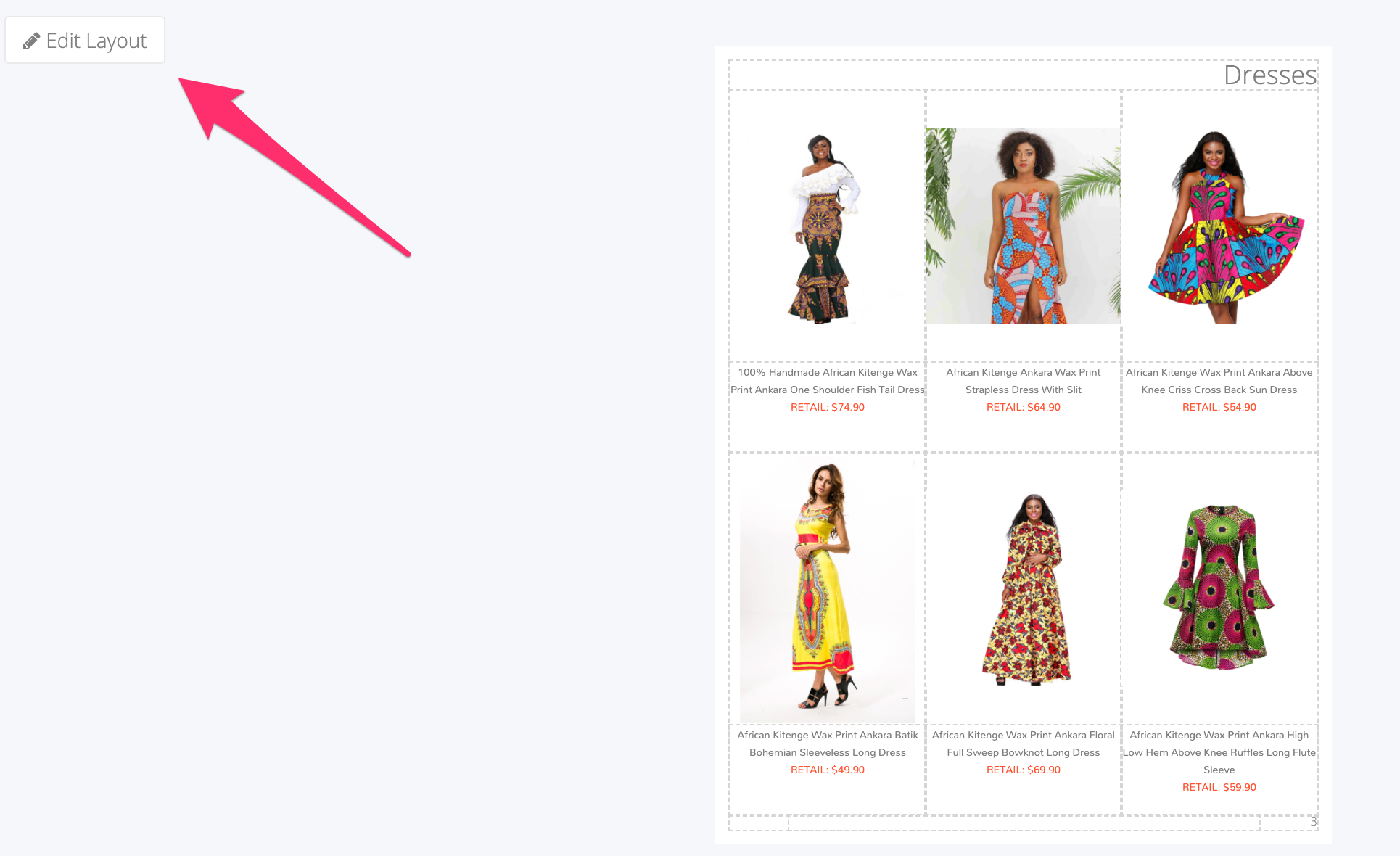
   

From there, the following screen will be displayed. On this screen, you can:
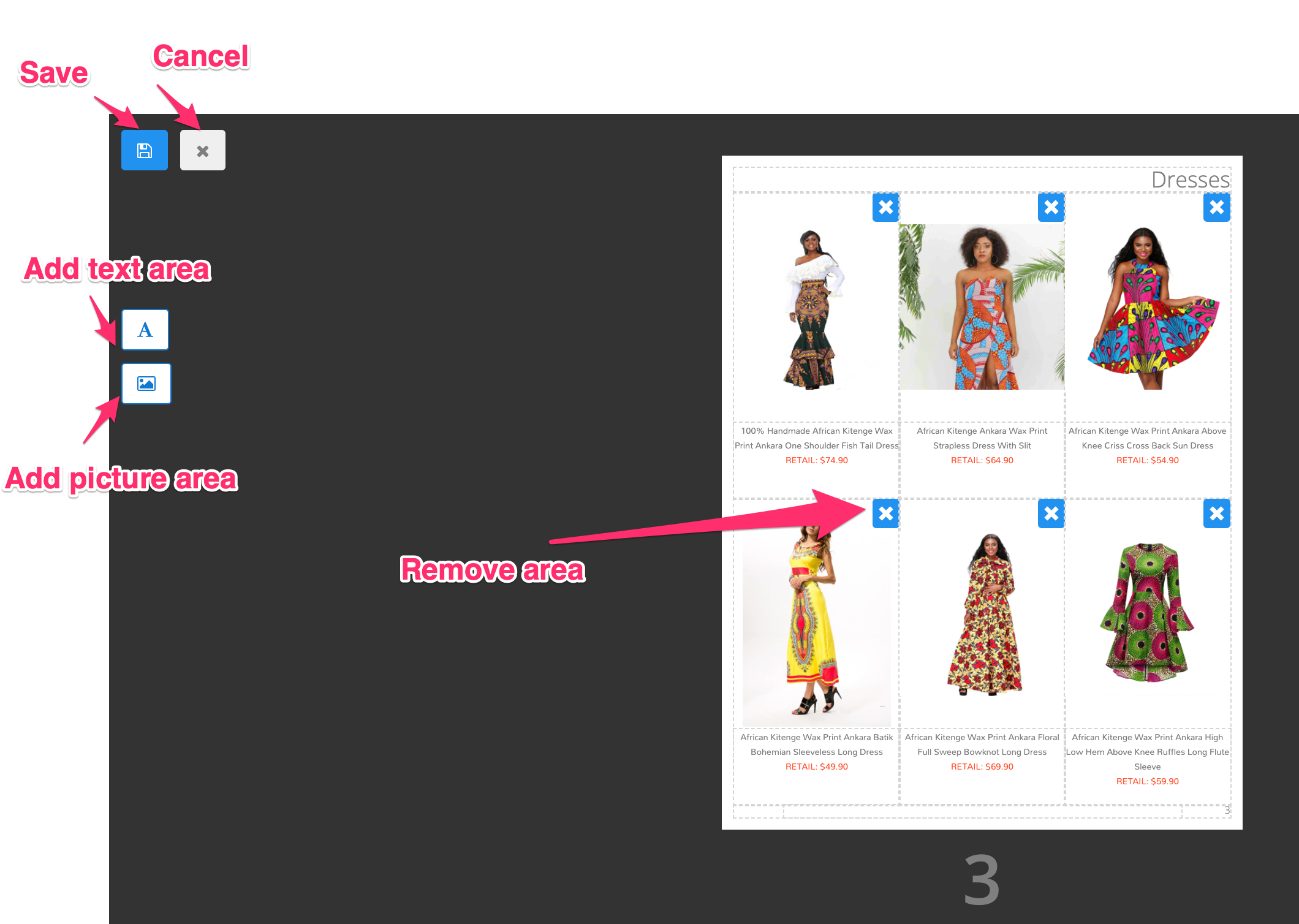
 

  • Save your modifications
  • Cancel your modifications
  • Add a text area
  • Add a picture/product area
  • Click on the cross icon located on the top-right corner of any area to remove it
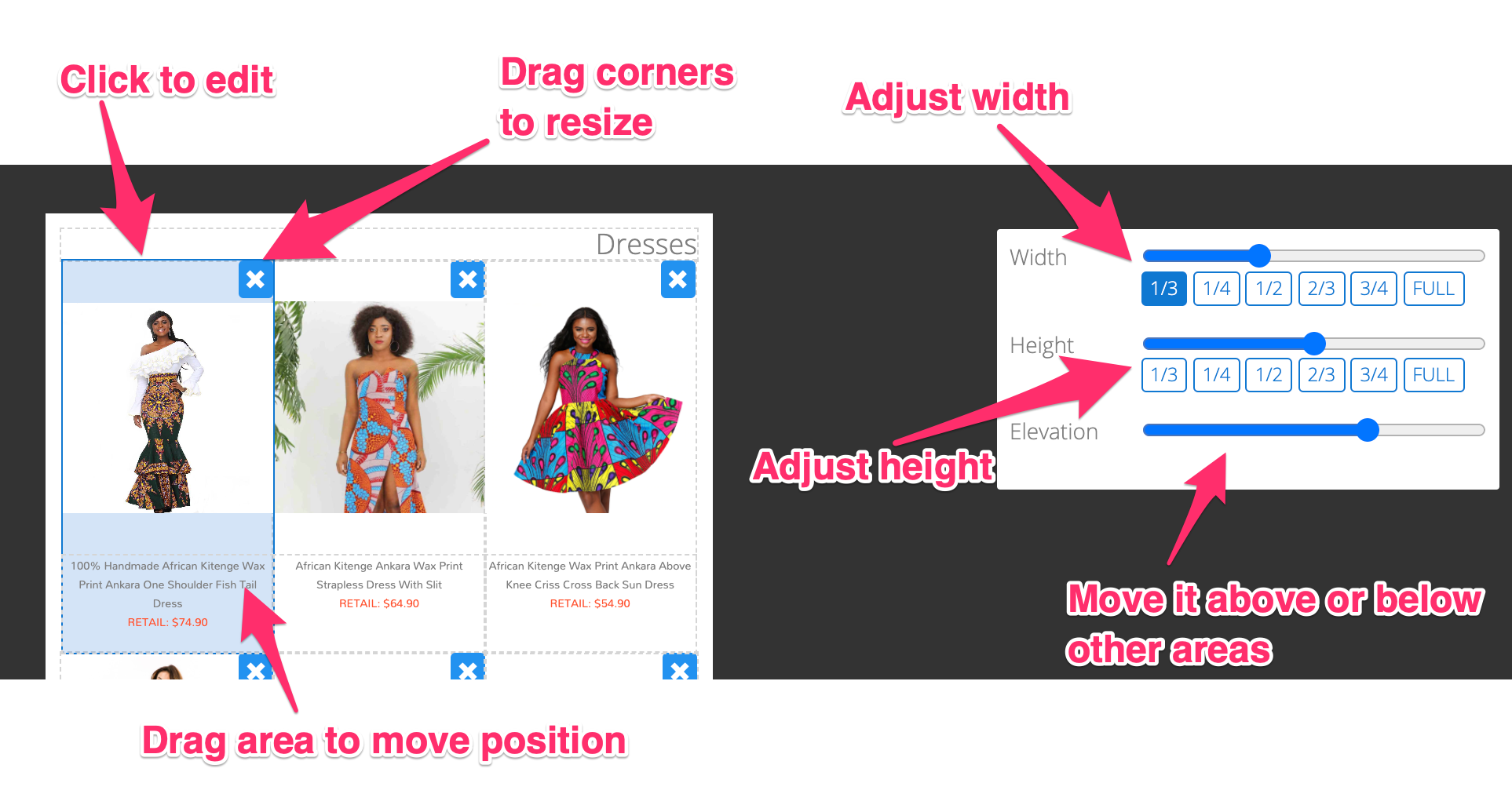


Edit an area

Once you click on a specific area of the page, the following menu. On this menu, you can do the following actions:


  • Drag the corners of any area to resize it
  • Drag the area itself to move it around
  • Adjust the width via the slider located on the right corner or use one of the shortcut buttons located below to automatically set the width to 1/3, 1/4, etc. of the total width of the page
  • Adjust the height
  • Adjust the elevation level which gives you the ability to place one area below or above another one


Use your layouts

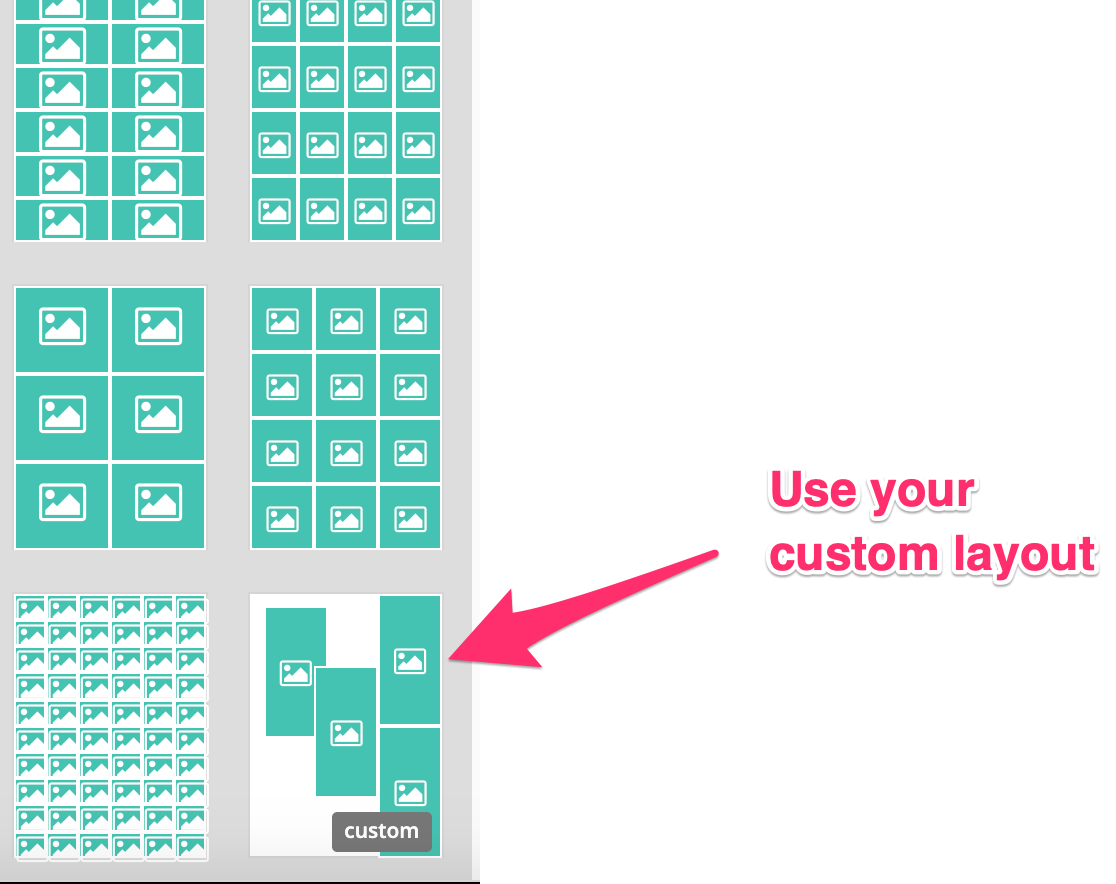
Once you created your new layout, you can reuse it by going into the layouts tab:  

Modify a custom layout

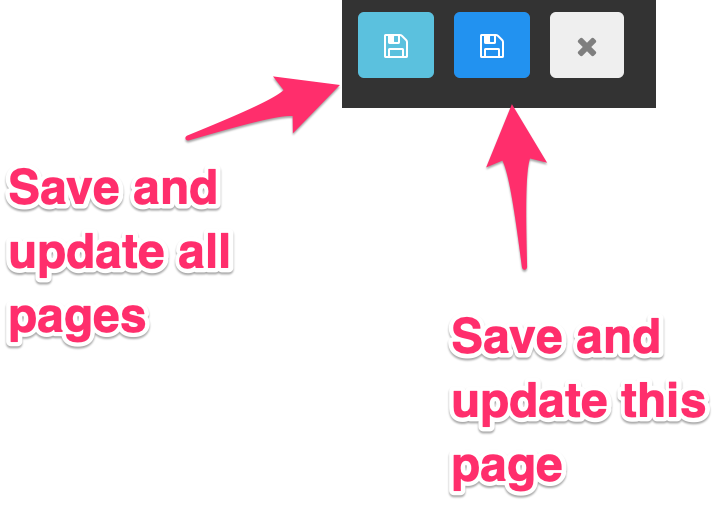
When you edit a layout previously created, a new option will appear:


  • The save and update all pages option will update your layout and update all pages using this layout.
  • The save and update this page option will create a copy of this layout and apply it to the current page only.