How to customize the online catalog?

How to customize the online catalog?

Catalogs Customization Options

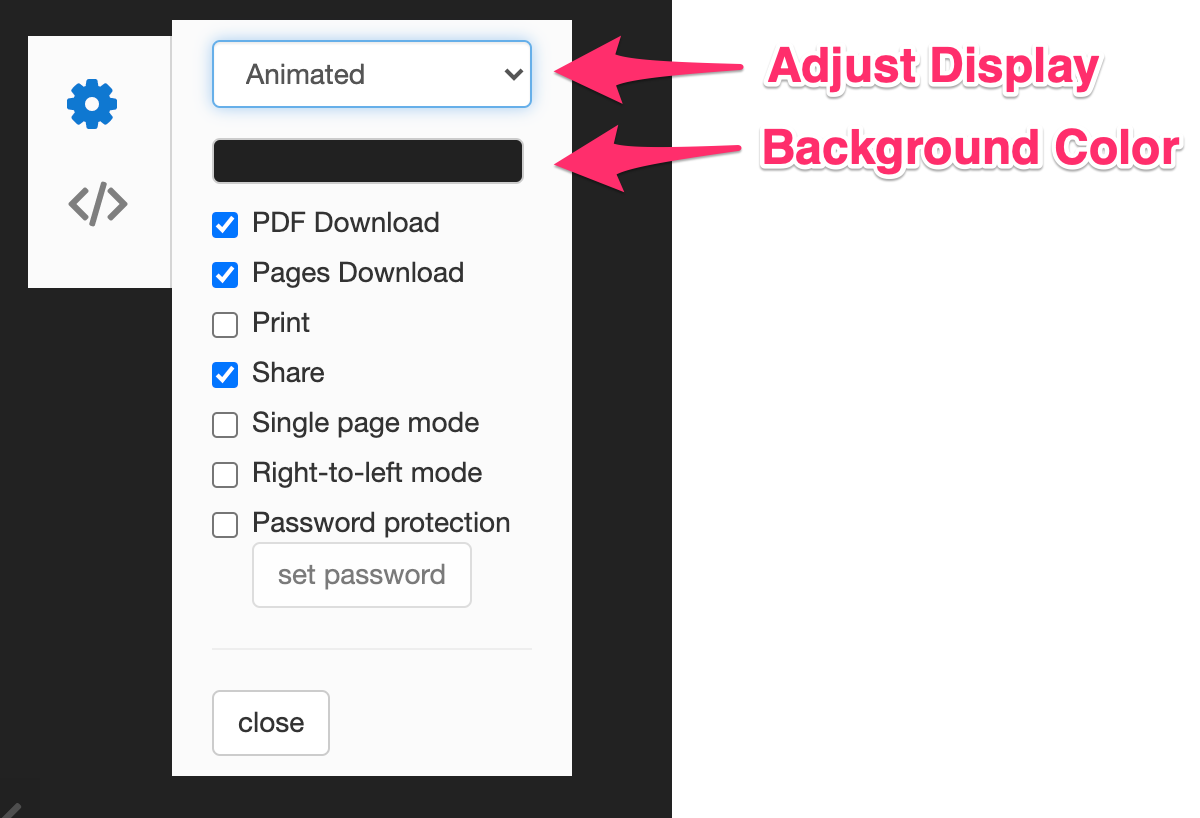
The panel located on the top left corner let you customize different aspects of your online catalog:


  • Display options: 4 modes are available: animated, 3d, 2d, slideshow 
    • Animated (default mode): Shows a smooth curled-page animation when you change pages    
    • 3D: Shows a straight animation when you change pages
    • 2D (faster rendering: No animation when you change pages
    • Slideshow: Works like an image slideshow, pages are moved to the side when you change pages.
  • Background Color: Adjust the online catalog background color. This is especially useful when you embed your catalog on your website and you want your catalog to fit seamlessly with the existing background.
  • PDF Download: Show/Hide PDF Download Button
  • Pages Download: Show/Hide Pages Download (JPG) 
  • Print: Show/Hide Pages Print Button
  • Share: Show/Hide Social Networks Share Button
  • Single Page Mode: Display one page at a time
  • Right-to-left Mode: Browse through your catalog from right to left
  • Password protection: Protect your catalog with a password


Catalogs Control

This catalogs also comes with new controls:

  

From left to right, here are the new controls available:


  • Auto-play: Let your catalog change pages automatically
  • Browse pages: Show all pages thumbnails and quickly switch from one page to another
  • Pages Numbers: Click on it and set the page you want to jump to
  • Zoom-in/Zoom-out: Zoom in and out 
  • Text selection: Select a text to copy and paste
  • Share: Share your catalog on social networks
  • Download PDF: Download your catalog in PDF format
  • Download Pages: Download specific pages of your catalog in PDF format
  • Full Screen: Display your catalog in Full Screen
    • Related Articles

    • How do I set up a password to protect catalogs?

      How do I set up a password? Open your online catalog. Click on the setting button located in the top left corner. Activate the Password protection option. Click on the set password button. A new dialog will open where you can set your password, ...
    • How to set up your own domain name to personalize your online catalogs URL?

      You can add your own domain name to the Catalog Maker to personalize the URL of your online catalogs. To do so, please follow this procedure: Log in to the account that you have with your domain provider. Find your DNS settings. Look for your domain ...
    • Generate barcode on the Catalog Maker (Bigcommerce & Shopify only)

      The Automatic Catalog Maker makes it possible to generate and print barcodes and QR codes; this feature is only for Shopify and Bigcommerce users. To create and print barcodes, you can: Either Select Print in the menu on the left side: Or you can go ...
    • How to provide another account to access the Catalog Maker?

      At the moment it is not possible to have another account to access the Catalog Maker, only Shopify users can provide Collaborator access to external people so that they only have access to the applications. But we have an alternative option to give ...
    • How can I export my Catalog in a CSV file?

      Have you finished creating your catalog and need to download it in a CSV file? In our app, it is possible to download it in that format. In the catalog editor, when you select download, you must select Export as CSV. After all that, you can download ...
    • Popular Articles

    • How to generate barcodes?

      To generate the barcodes with our app, you must do the following: First, you must go to Settings. You must select the type of barcode that you want our app to generate; you must choose any type of the following: When you have already chosen the type ...
    • Why I can't access Kodbar?

      Can't access Kodbar? Here are the reasons why you cannot access Kodbar: -It is possible that your plan has already expired, so it is required that you make the payment of a plan so that you can access the app. -Your trial period has expired, you need ...
    • How do I set up a password to protect catalogs?

      How do I set up a password? Open your online catalog. Click on the setting button located in the top left corner. Activate the Password protection option. Click on the set password button. A new dialog will open where you can set your password, ...
    • How to customize the online catalog?

      Catalogs Customization Options The panel located on the top left corner let you customize different aspects of your online catalog:       Display options: 4 modes are available: animated, 3d, 2d, slideshow  Animated (default mode): Shows a smooth ...
    • How to create custom layouts?

      Edit your page's layout The layout editor is available for new catalogs. If you want to use it on an existing catalogs, please contact us via chat and we will update your catalog. In order to edit your layout, you just need to click on the button ...